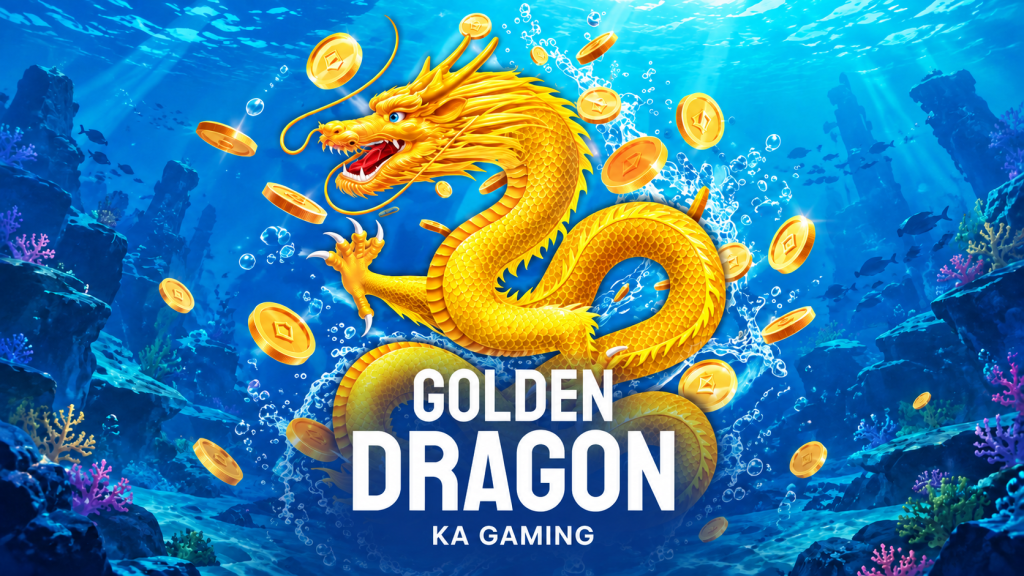
Golden Dragon by KA Gaming fills its underwater scene with moving creatures, cannon effects, crystals, and a striking golden dragon. The activity can become visually busy, making interface readability an important part of understanding the game.
This hawkplay guide focuses on how to read the screen, distinguish important information from animation, and check the controls on the device you use. Mobile access and available settings depend on the service and game implementation.
What to Look for on the Golden Dragon Screen
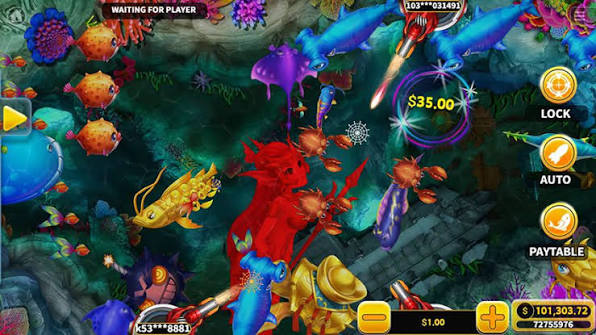
Start with the balance, current shot cost, and help menu. Those elements explain the financial meaning of your actions. Decorative effects and target size can attract attention, but they do not tell you what has been deducted or credited.
Before playing, find a comfortable display size. If the version offers a landscape or full-screen view, check whether it makes the controls clearer without hiding the stake or balance.
| Screen Element | Practical Check |
|---|---|
| Current balance | Can you read it while the action continues? |
| Shot setting | Is the cost visible before you fire? |
| Target information | Can you open the reward chart? |
| Controls | Do you understand each displayed button? |
| Feature animation | Can you distinguish Freeze Bomb from Crystal Win? |
| Exit or pause controls | Can you stop interacting without confusion? |
Golden Dragon on a Smaller Display
Check Touch Accuracy and Readability
A smaller screen can make adjacent targets harder to distinguish. Read the help panel and test the interface in a demonstration mode where available. Avoid assuming that a control works exactly like another fish game you have played.
For hawkplay readers, the useful test is whether you can identify your chosen setting and see the result of an action. Attractive graphics are less helpful if essential numbers are too small to follow.
Understand What Continues Automatically
If the displayed version includes automatic firing or target-lock options, read their instructions before enabling them. Check how they start, how they stop, and whether firing continues when a target moves away. Do not infer these functions solely from an icon.
Recognizing Features in a Busy Scene
Freeze Bomb temporarily stops fish movement when activated. Crystal Win involves linked crystal targets. Their effects may create bright visual changes, but the credited award must still be read separately.
| Visual Event | What to Verify |
|---|---|
| Fish stop moving | Whether Freeze Bomb is active |
| Crystals react together | Which objects qualify for Crystal Win |
| A large creature appears | Its identity and listed reward |
| Prize animation | The amount actually credited |
| Cannon appearance changes | Whether the selected shot cost changed |
Connections and Interrupted Play
This hawkplay overview does not assume that every service handles interruptions in the same way. Before using a cash balance, review its disconnection and settlement rules. If the display freezes or a result is unclear, consult available history or support rather than assuming a tap failed or a wager was refunded.
A stable connection improves usability, but it does not improve the game’s payout odds. Device performance and outcome probabilities are separate questions.
Golden Dragon Interface FAQ
Can Golden Dragon be accessed on a phone?
Check whether the service supports your browser and device. This guide does not guarantee compatibility with every phone or operating system.
Does a brighter effect mean a larger net win?
No. Read credited prizes and subtract the relevant costs to assess the result.
What should I check before a first session?
Confirm the active balance, shot cost, rules, and control behavior. The main advice from this hawkplay guide is to make the screen understandable before allowing the pace of the action to set your spending pace.